การติดตั้ง Claude Code
Claude Code คือ AI Coding Assistant ที่ทำงานใน Terminal โดยตรง เข้าใจ Codebase ทั้งหมดของคุณ และช่วยเขียน/แก้ไขโค้ดผ่านภาษาธรรมชาติ
ข้อกำหนดเบื้องต้น
บัญชี Claude ที่ต้องการ: Claude Code ต้องการบัญชี Pro, Max, Teams, Enterprise หรือ Console เท่านั้น — บัญชีฟรีของ Claude.ai ไม่รองรับ Claude Code Claude ระบบปฏิบัติการที่รองรับ: macOS 10.15+, Ubuntu 20.04+, หรือ Windows 10+ (พร้อม WSL)
วิธีการติดตั้ง (แนะนำ: Native Installer)
Native Installer เป็น method ที่แนะนำในปัจจุบัน ไม่ต้องติดตั้ง Node.js ให้ยุ่งยาก
### 🍎 macOS
# ติดตั้งผ่าน Homebrew
brew install claude-code

# หรือดาวน์โหลด Desktop App ได้โดยตรง
# จาก code.claude.com
🐧 Linux (Ubuntu/Debian)
# Native Installer (แนะนำ — ไม่ต้องการ Node.js)
curl -fsSL https://claude.ai/install.sh | sh

# ตรวจสอบเวอร์ชัน
claude --version
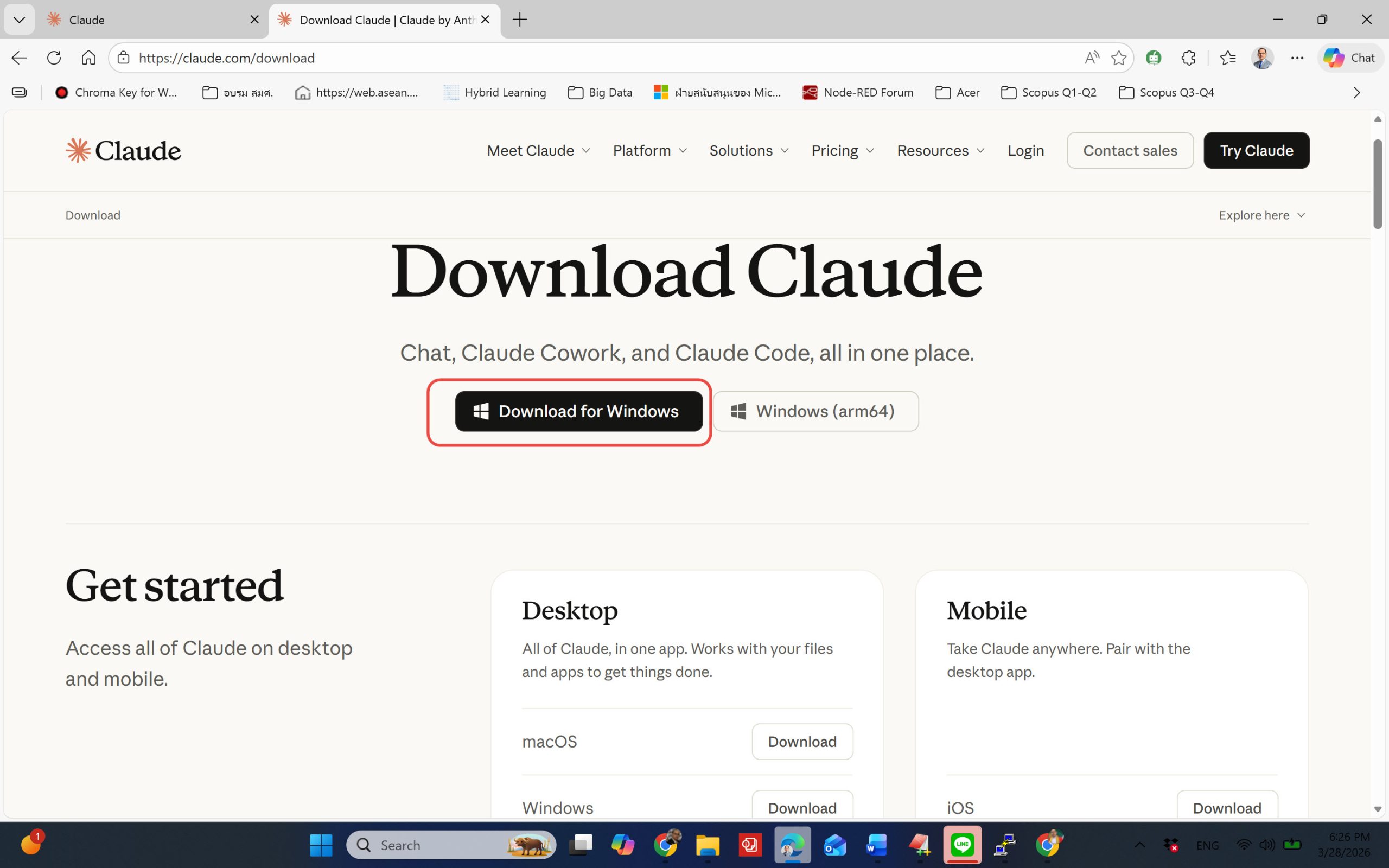
🪟 Windows
Windows ต้องการ Git for Windows ก่อนติดตั้ง Claude Code สามารถเปิดใช้งานผ่าน PowerShell, CMD หรือ Git Bash ได้
วิธีที่ 1: Native Windows (ผ่าน PowerShell)
powershell
# 1. ติดตั้ง Git for Windows ก่อน จาก git-scm.com
# 2. เปิด PowerShell แล้วรัน:
winget install Anthropic.ClaudeCode

# ตรวจสอบ
claude --version
วิธีที่ 2: WSL (Linux บน Windows)
# เปิด WSL Terminal แล้วรัน:
curl -fsSL https://claude.ai/install.sh | sh
การ Authentication หลังติดตั้ง
# เปิด Terminal ในโฟลเดอร์โปรเจกต์ แล้วรัน:
claude
หลังติดตั้ง ให้รัน claude แล้วทำตาม OAuth flow ในเบราว์เซอร์เพื่อเชื่อมต่อบัญชี
การอัปเดต
| Platform | คำสั่งอัปเดต |
|---|---|
| Native (macOS/Linux) | อัปเดตอัตโนมัติ background |
| Homebrew | brew upgrade claude-code |
| WinGet | winget upgrade Anthropic.ClaudeCode |
การติดตั้งแบบ Homebrew และ WinGet ไม่มีการอัปเดตอัตโนมัติ ต้องรันคำสั่งด้วยตัวเองเป็นระยะ
## 🩺 ตรวจสอบการติดตั้ง
# ตรวจสอบสุขภาพระบบ
claude doctor

# ดู help
claude --help